|
Forged This Week
From the saw to the door supplier to the site visit: four shop-floor upgrades.
|
|
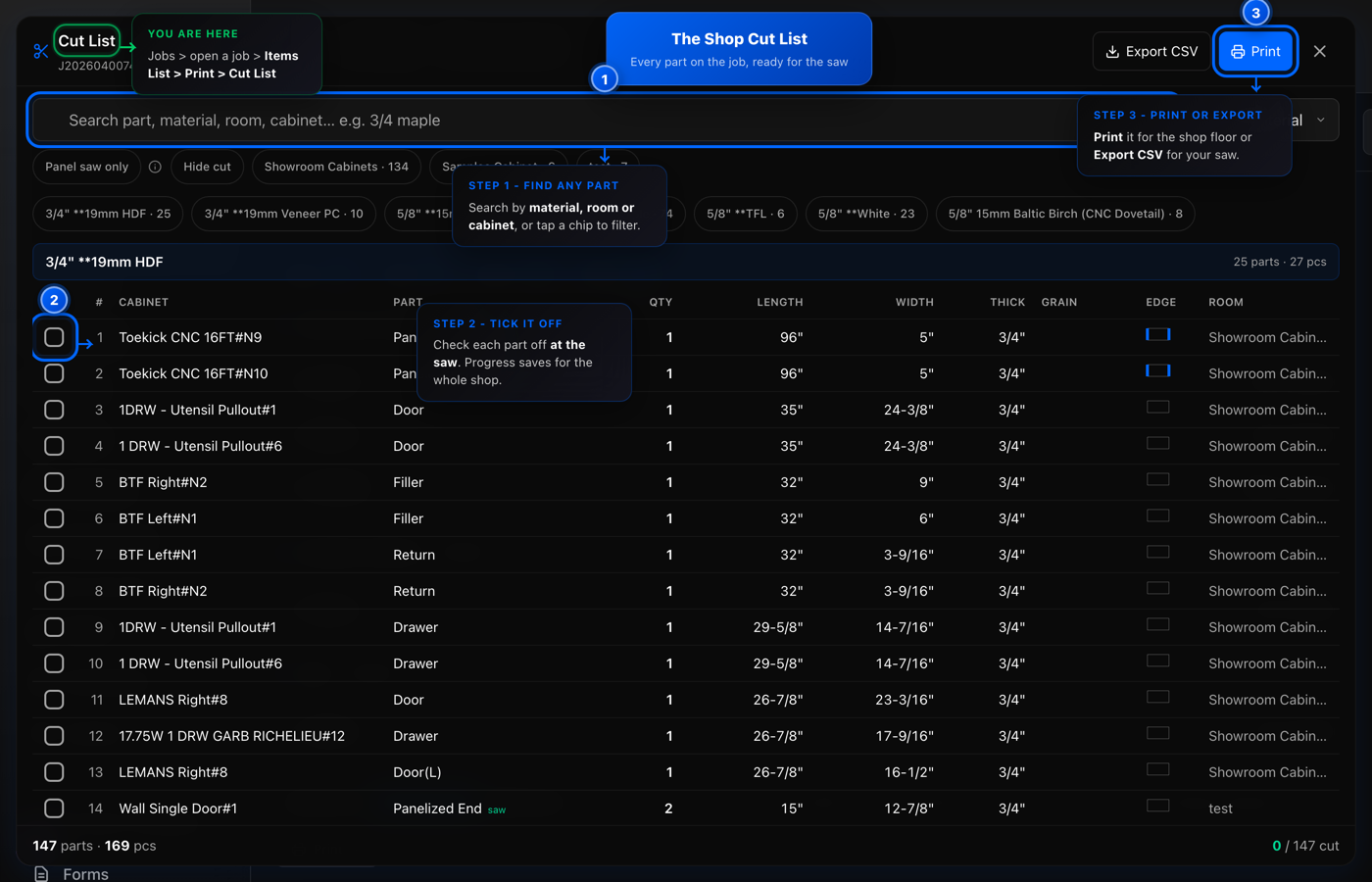
Every part from every room in one searchable list, so the saw operator ticks parts off as they go and the whole shop sees what is left.
Where to find it: Sidebar > Work Management > Jobs > open a job > Items List > Print > Cut List
Try it in JobForge
|
|
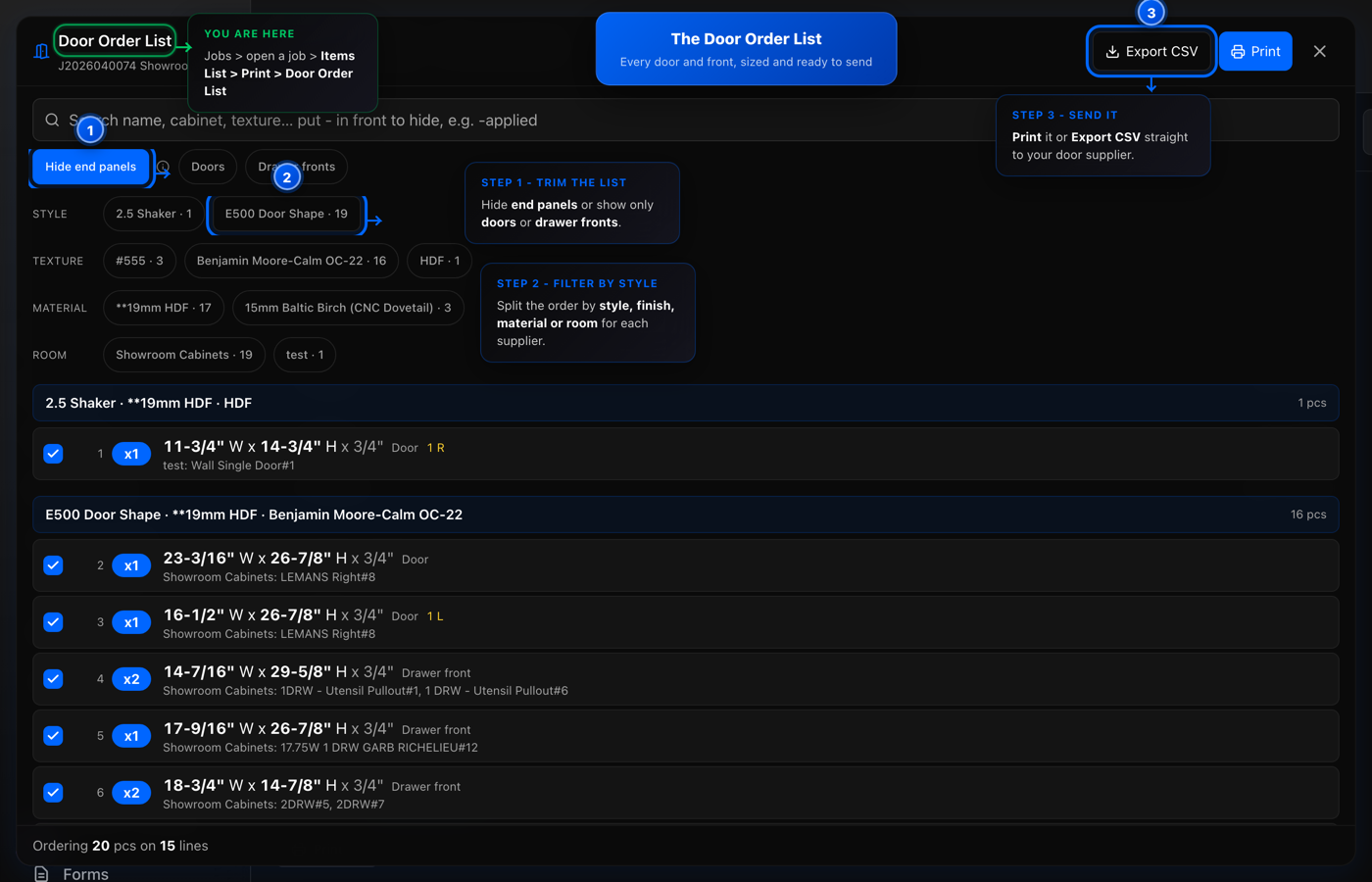
Every door and drawer front on the job, sized and grouped by style and finish, ready to print or export as a CSV for your door supplier.
Where to find it: Sidebar > Work Management > Jobs > open a job > Items List > Print > Door Order List
Try it in JobForge
|
|
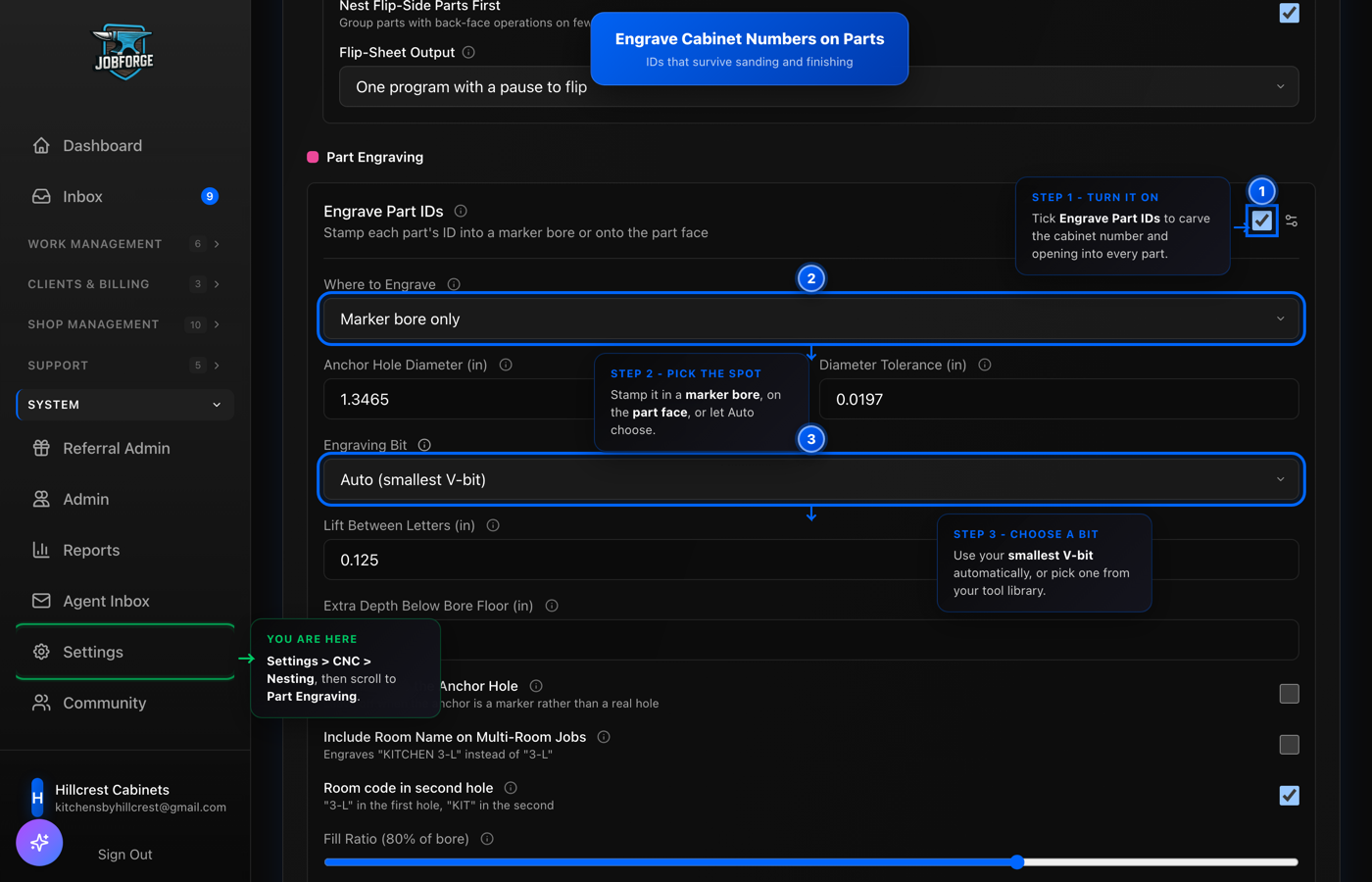
Your CNC carves the cabinet number and opening into each part, so the ID is still there after sanding and finishing.
Where to find it: Sidebar > System > Settings > CNC > Nesting > Part Engraving
Try it in JobForge
|
|
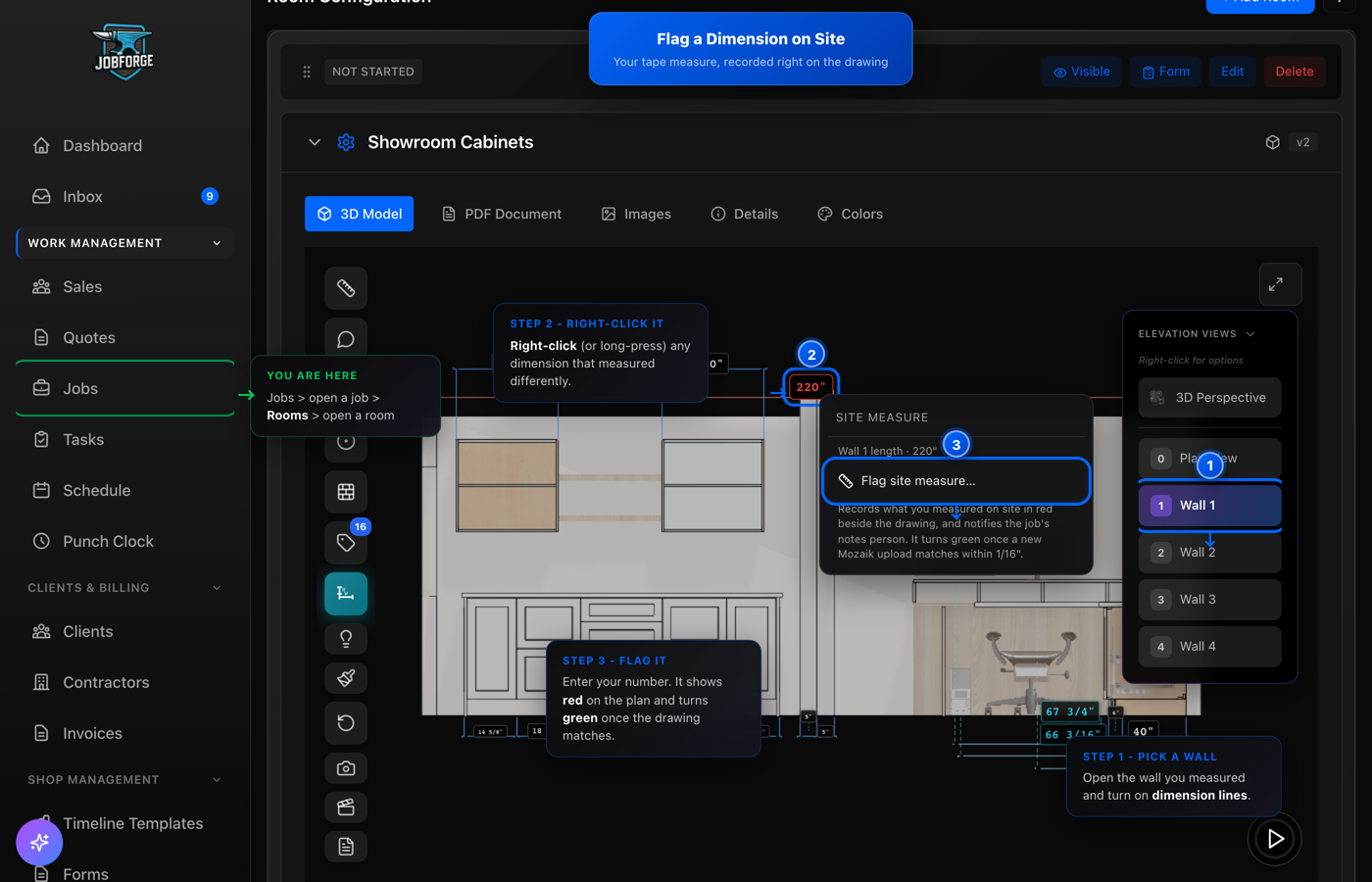
Right-click any dimension on a wall and enter what your tape says: it shows in red on the drawing, notifies the job's notes person, and turns green once the updated drawing matches.
Where to find it: Sidebar > Work Management > Jobs > open a job > Rooms > open a room > pick a wall > right-click a dimension
Try it in JobForge
|
Feature Spotlight
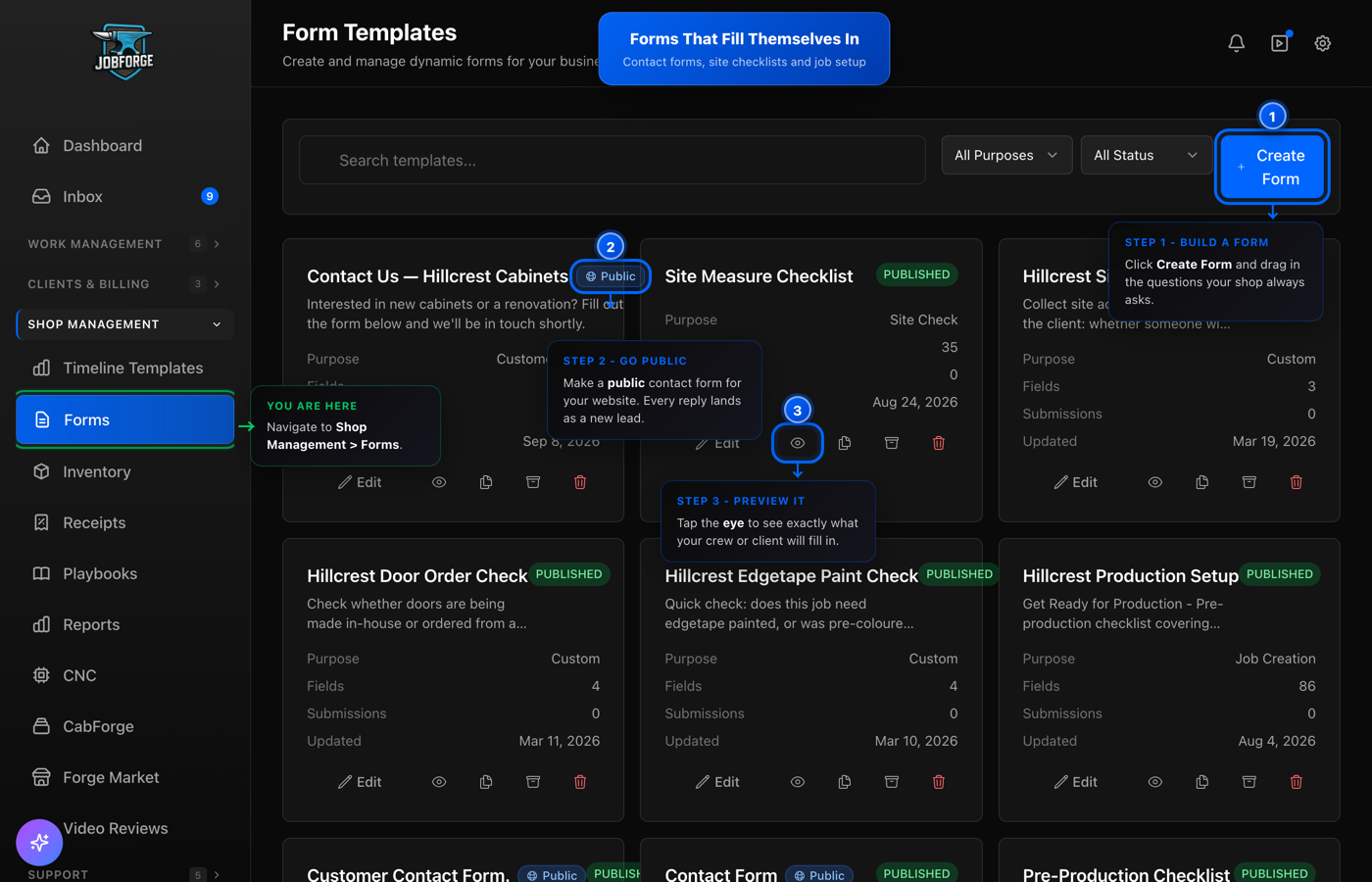
Build site checklists for your crew, or a public contact form for your website where every reply lands in JobForge as a new lead.
Where to find it: Sidebar > Shop Management > Forms
Try it in JobForge
|